

Key Takeaways
- Keep your audiences engaged: Rather than sending them to another app or website, having a Google Merchant Center setup keeps them in the same viewing environment, improving the shopping experience.
- Advertisers are rushing in: Interactive and shoppable formats are already utilized by 41.8% of US marketers across social media and Connected TV (CTV). This figure is anticipated to rise as shoppable CTV ads become essential, particularly for brands in the e-commerce and retail sectors.
- Link and advertise: With Merchant Center Next, your website can be automatically crawled for products without manual input, ready for an easy shopping campaign launch.
Jump to Section
Google Merchant Center Setup for Demand Gen & PMax Ads
In the age of AI-driven advertising, your product feed has just become your most powerful creative asset, and a proper Google Merchant Center setup is what unlocks it.
For years, the Google Merchant Center was treated as a backend utility, a place to park product listings so it could show up in standard Shopping tabs. But that has since shifted. With the dominance of Google Performance Max (PMax) and the rise of Demand Gen campaigns, the quality of your data now dictates the quality of your creative. Simply put, if your feed is basic, your ads will look basic too.
In this blog, we’ll cover how to set up a Google Merchant Center account that fuels the AI-driven shopping campaign mechanism in the Google Ads ecosystem. Whether you’re an enterprise eCommerce brand or a growing local retailer, this guide helps you configure your product feed to support scalable, shoppable campaigns.
Why Advertisers Need Google Merchant Center for Demand Gen & PMax
Before getting into the technical steps, it’s important to understand that your Google Merchant Center setup will be the primary source for your ad assets. This feed is what fuels Google Ads automation to effectively build, personalize, and scale your campaigns.
Why Does Performance Max Require a Merchant Center Feed?
Performance Max ads are designed to serve across all of Google’s inventory (Search, Maps, YouTube, Display, Discover, Gmail). Without a product feed, PMax relies solely on the text and image assets you manually upload.
When you connect a Merchant Center feed, you activate dynamic asset generation. PMax uses your product data (titles, images, pricing, and availability) to automatically create ads that match specific search queries or user intents in real time. This AI-driven approach to creative and targeting allows you to scale creative production efficiently without requiring manual effort.
The Power of Shoppable CTV and TV Ads
Demand Gen has replaced Video Action Campaigns, bringing a brand new opportunity for advertisers: shoppable CTV ads.
As television consumption shifts to streaming, YouTube TV and the YouTube app on Connected TV (CTV) have become prime real estate. Demand Gen campaigns utilize your feed data to display browseable product cards alongside video content. This turns a passive viewing experience on the big screen into an active shopping opportunity.
Optimizing your product feed is key to maximizing high-value Demand Gen placements, such as product tagging within YouTube Shorts and interactive features on YouTube TV channels. According to BrightLine research, interactive advertisements lead to significant performance improvements, including a 36% increase in unaided recall, a 13% increase in foot traffic, and a 33% boost in brand affinity.
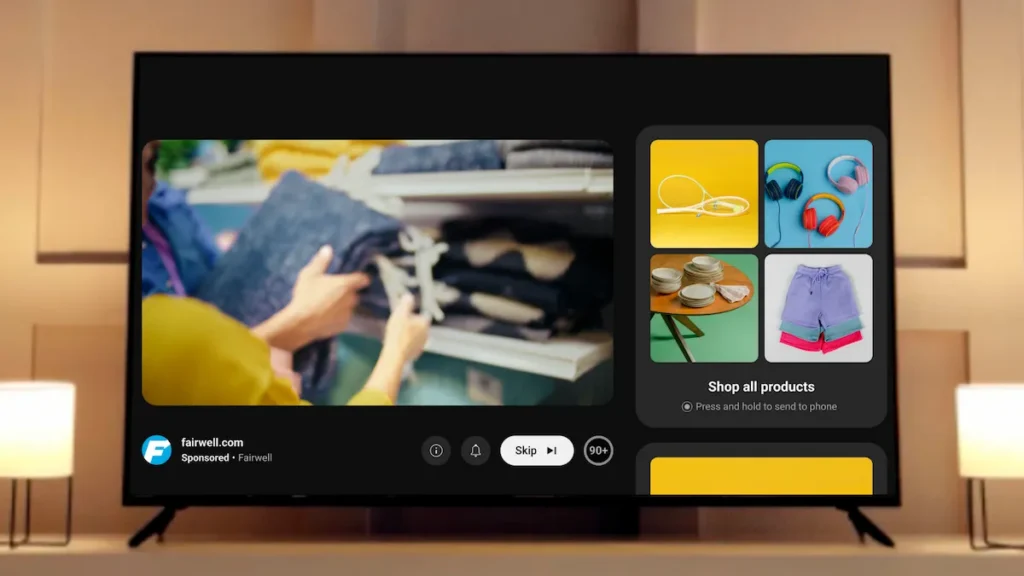
Shoppable video formats also significantly reduce friction in the path to purchase. Instead of sending viewers from a video to a generic landing page, shoppable YouTube ads using Google Merchant Center showcase the exact product, price, and image directly within the ad unit. This pre-qualifies user intent, improves click quality, and ultimately drives stronger conversion performance across both Demand Gen and Performance Max strategies.
Further Reading
Understanding the Differences Between Demand Gen, PMax, and Display
With several campaign formats running across Google and YouTube environments, similarities in reach and placement can blur the lines. This guide breaks down what sets Demand Gen, PMax, and Display apart so you can match each to the right marketing goal.
Google Merchant Center Setup: Step-by-Step Guide
If you are new to the platform, this step-by-step tutorial walks through the core configuration required to launch Demand Gen, PMax campaigns, and shoppable YouTube ads using Google Merchant Center.
- Create your account. Sign up for Google Merchant Center using the same Google login tied to your business and Google Ads account to ensure smooth integration later.
- Add accurate business information. Enter your business name, address, and contact details exactly as they appear on your website. Avoid mismatches to prevent any disapprovals and possible account suspensions.
- Verify and claim your website. You must verify ownership of your domain to show Google that you’re authorized to sell the products listed in your feed.
- Configure shipping settings. Set up shipping services that match what customers see at checkout. Your feed shipping costs should match or slightly exceed site pricing (never be lower).
- Configure tax settings (if applicable). For regions where tax configuration is required, ensure pricing accuracy to avoid mismatched totals and product disapprovals.
- Upload your product feed. You can add products via:
- e-commerce platform integrations (e.g., Shopify, WooCommerce)
- Google Sheets
- Content API
- Review product policies. Confirm your catalog complies with Google policies to avoid immediate disapproval or limited serving.
- Submit and wait for review. After submission, Google crawls your website to validate price, availability, and product data before allowing ads.
How to Link Google Merchant Center to Google Ads
To activate shoppable YouTube CTV ads and PMax dynamic assets, here’s how you can bridge the gap:
- In Merchant Center, open Settings.
- Go to Access and services, then click on Apps and services.
- Under Google services, choose Add service.
- Select the Google Ads account you want to connect.
- Click on Link to complete the connection.
- To solely connect your Google Ads account with your Merchant Center, choose Link to Merchant Center Only, and then click Link.
How to Prepare My Google Merchant Center for Demand Gen Campaigns?
Demand Gen ads are visual-first. Unlike standard Shopping ads, they appear in highly visual environments such as YouTube Shorts ads and Discover.
- High-Res Imagery: Your images must be high-resolution, with a minimum size of 500 x 500 pixels. The recommendation is 1:1 square images for the best possible coverage and a better appearance in product feeds on Connected TV (CTV) for YouTube Shopping ads.
- Keep it Short: Use the [short_title] attribute in Google Merchant Center. YouTube ads and Gmail placements often have limited character counts. A punchy short title, preferably 65 characters or less, ensures your product title is fully visible.
How to Add Merchant Center Feed to PMax Campaign
When setting up a Google Performance Max campaign, the feed is usually selected automatically if the accounts are linked.
We recommend splitting your inventory into separate campaigns: seasonal products, clearance items, and your regular product feed.
- Use Custom Labels: In your feed, use attributes like [custom_label_0] to tag products as “Best Sellers,” “High Margin,” or “Clearance.”
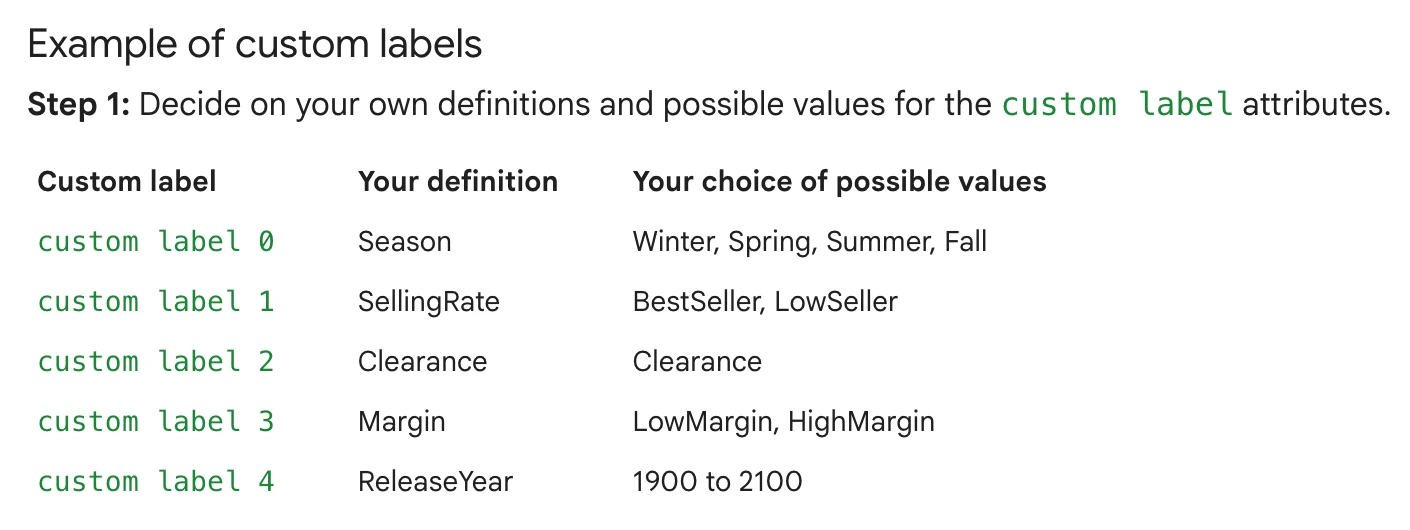
- Asset Groups: Within Google PMax, you can filter listing groups using these labels to prioritize bidding and budget allocation toward high-value products, improving efficiency across Performance Max campaigns.
Google Merchant Center vs. Merchant Center Next
If you’ve logged into Google Merchant Center recently, you’ve likely noticed a new interface. Google is gradually migrating advertisers from the classic experience to Merchant Center Next, reflecting a broader shift toward automation and AI-assisted workflows.
The New Standard: What is Merchant Center Next?
Merchant Center Next is a streamlined, AI-first version of the platform designed to simplify onboarding and product management, particularly for smaller advertisers. However, it can feel limiting for advanced teams running complex campaigns or large catalogs.
| Classic | Next |
|---|---|
| Supports manual and supplemental feeds | Includes Product Studio, which can generate lifestyle backgrounds, useful for Demand Den ads and visual placements |
| Allows complex feed rules and deeper diagnostics | Uses automated product detection that scans your website for items |
| Provides manual control for feed segmentation strategies | Requires manual review to ensure titles, pricing, and availability are accurate |
Migration and Control
If your account is migrated, review your product sources immediately. Auto-detected feeds can sometimes pull incomplete or incorrect data, which may impact how products appear across YouTube ads, Demand Gen placements, and PMax ads.
If accuracy becomes an issue:
- Switch to a file-based or API feed to regain control
- Validate titles, descriptions, and pricing
- Make sure your feed structure aligns with how you want inventory surfaced in Google and YouTube ads
For advertisers managing large catalogs or multiple campaigns, maintaining manual control over product sources allows you to decide which items are promoted and how they’re grouped.
Common Pitfalls & Troubleshooting
Even with a perfect Google Merchant Center setup, issues may arise. Here are the most common blockers and how to resolve them:
- Misrepresentation & Policy Violations: With the advanced features of Merchant Center Next, Google’s bots may crawl your website and find a price or shipping cost that doesn’t match your feed.
Use the “Automatic updates” feature in Merchant Center to allow Google to update prices and availability in your ads whenever they change on your site. - Image Disapprovals in Demand Gen: YouTube Demand Gen ads for e-commerce products must adhere to strict aesthetic guidelines. Text overlays on images (like “20% OFF” stickers) may pass in PMax, but are frequently disapproved in these placements.
Keep your feed images clean, high-res product shots (no text), to clearly show the product you are advertising. - Data Lag: Changes in Merchant Center can take up to 24 hours to reflect in Google Ads.
If you have a planned sale, upload your feed update or schedule a data fetch at least 24 hours in advance. Alternatively, use the “Sale Price” attribute [sale_price] with the [sale_price_effective_date] to automatically schedule changes.
Shopping Made Easier for Google and YouTube Audiences
A strong Google Merchant Center setup is what allows your campaigns to scale efficiently across the Google ecosystem. It is what backs your Performance Max campaigns to drive conversions, and it’s the creative spark behind your Demand Gen placements to spark demand from buyers.
When your feed is optimized, you’re allowing automation to build better creatives, match real user intent, and deliver more relevant shopping experiences. Treating your feed as a dynamic creative asset unlocks the full value of AI-driven inventory, from Search results to shoppable CTV ads.
Don’t let a basic setup limit your performance. With the right structure and data quality, your Google Merchant Center becomes the engine that helps your Google and YouTube ads work smarter, not harder.
Ready to get started?
Don’t guess your way through the settings. Download our Google Merchant Center Setup Guide for a click-by-click walkthrough to launch your shopping campaigns smoothly and scale with confidence.

Article by
Lee Baler, Strike Social’s VP of Sales & Strategy
Lee leads global strategy, helping clients and agencies maximize YouTube and paid social performance. Constantly tracking industry trends, he translates insights into strategies that help brands stay competitive and achieve sustained profitability.


