

Key Takeaways
- Unifying Google platforms’ data: Linking Google Merchant Center to Google Analytics helps unify product listings and shopping campaign data for enhanced bidding and user journey tracking.
- Benefits of GMC and GA4 integration: Google’s smart bidding uses GA4’s full journey data for more precise adjustments, especially through auto-tagging and event imports. This resolves attribution gaps, such as cross-device paths that affect 65% of conversions, allowing up to a 32% lift in total revenue.
- Enhanced event and conversion tracking: Interconnecting these complex systems allows them to exchange signals, which is essential for more advanced, data-driven Shopping campaigns.
Jump to Section
How to Connect Google Merchant Center to Google Analytics 4 for Accurate Tracking
When connecting Google Merchant Center to Google Analytics, you create a clear path to scale your return on ad spend and ensure your attribution models are accurately tracking. By combining your product feed data with your conversion insights and machine-learning campaigns, such as Performance Max (PMax) and Demand Gen, your campaigns are fully equipped with the rich signals they need to optimize and thrive.
To achieve truly accurate tracking, bridging these systems is the most valuable step. This guide breaks down how to integrate these platforms, what data is shared, and how this unified tracking foundation powers everything from standard Search to highly engaging Shoppable TV campaigns.
The Value of Unified Google Merchant Center and Analytics Data
Establishing a direct connection to Google Analytics 4 asserts that your product listings and shopping campaign data work in perfect harmony. Advertiser data shows that by unifying data feeds and cross-platform tracking, campaigns can achieve up to a 42% improvement in CPL and a 28% improvement in conversion rates. By closing attribution gaps, brands can also see a revenue lift of up to 32%.
This happens because Google’s bidding algorithms are finally given a complete, uninterrupted picture of the user journey.
Linking these systems empowers you to see precisely how users interact with your products, from their very first impression on the YouTube app to the final checkout recorded in your Google Analytics dashboard.
Prerequisites for Google Merchant Center and Google Analytics 4 Integration
Before jumping into the integration steps, your foundational setup must be accurate to make the process frictionless. You need the proper administrative permissions to authorize the data sharing:
- Admin Access in GA4: You must have the “Editor” or “Administrator” role for the specific GA4 property you intend to link.
- Admin Access in GMC: You need administrative rights in your Google Merchant Center account.
- Active Google Ads Account: While you are linking GMC to GA4, the ultimate goal is to feed high-quality data into Google Ads.
Further Reading
How Google Merchant Center Powers Modern Shopping Campaigns
With AI-led campaign formats relying heavily on feed quality, your Merchant Center setup determines how effectively your products are matched to intent. Learn the essentials to configure your account so it powers smarter creative delivery and stronger performance signals.
Step-by-Step Guide to Connect Google Merchant Center to Google Analytics
Understanding how to connect Merchant Center to Google Analytics 4 is a straightforward process to allow your ad campaigns to yield significant dividends. Follow these steps to establish a seamless connection between these two platforms:
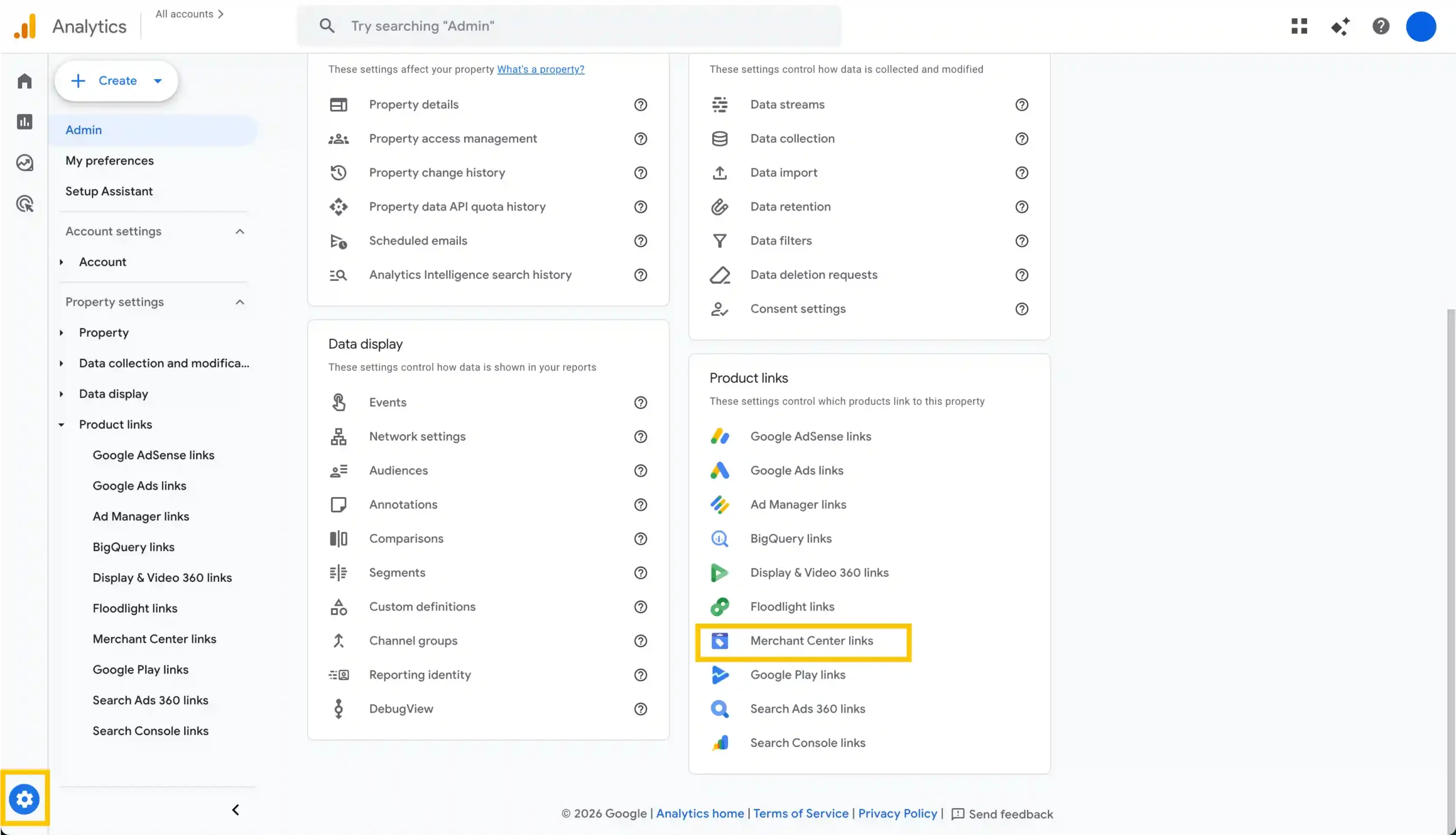
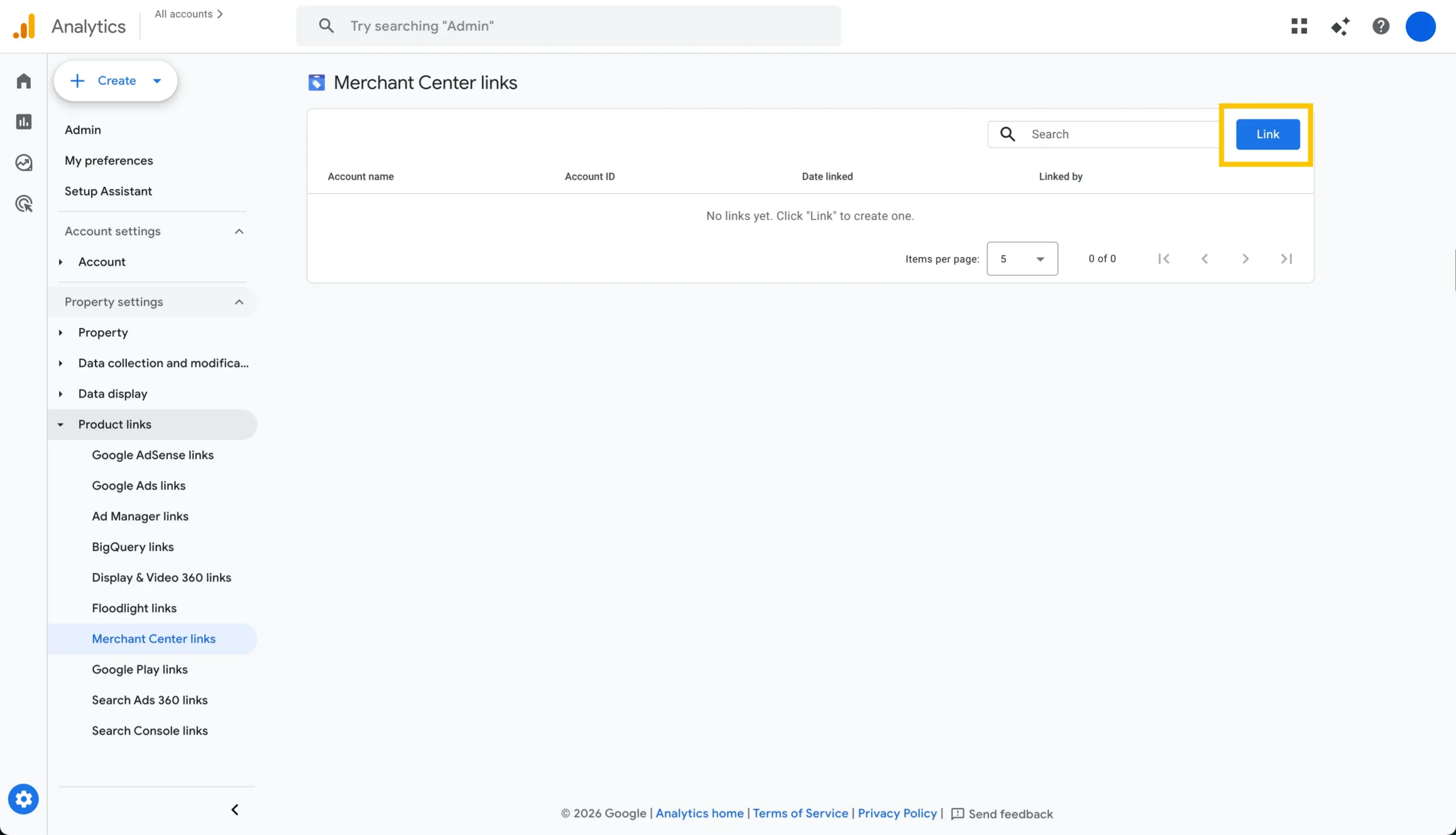
Step 1: Initiate the Link from GA4
- Log in to your GA4 account and navigate to the Google Analytics dashboard.
- Click the Admin gear icon in the bottom left corner.
- Under the Product Links column, locate and click on Merchant Center Links.
- Click the blue Link button.
Step 2: Select Your Merchant Account
- Click Choose accounts to view the Merchant Center accounts you have Admin access to.
- Select the specific Google Merchant Center account you want to link.
- Click Confirm.
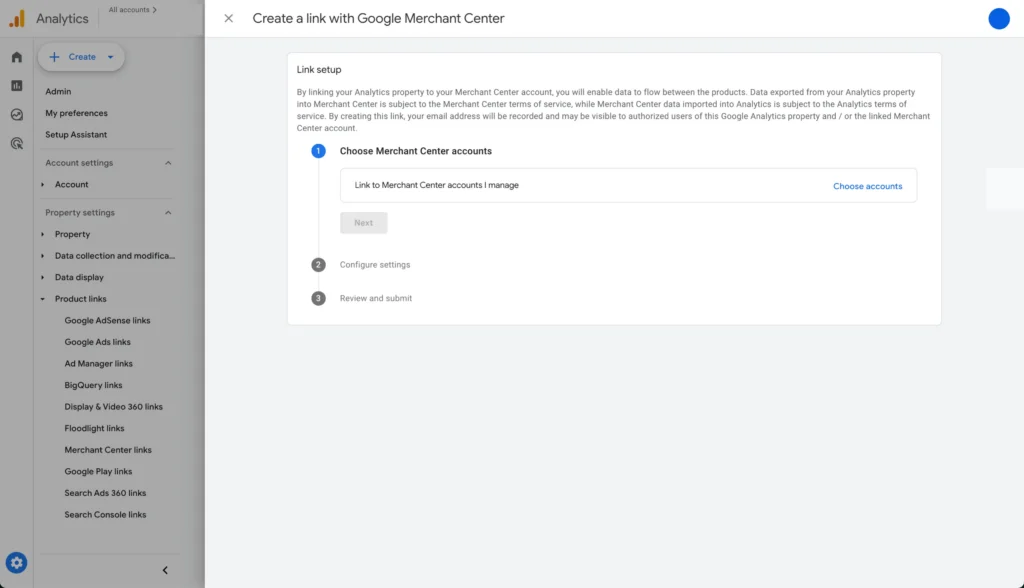
Step 3: Configure Settings and Enable Auto-Tagging
- Under Configure settings, ensure that Auto-tagging is enabled. This is the most critical step for linking the Merchant Center to GA4 for e-commerce tracking.
Auto-tagging automatically appends a helpful parameter to your product URLs, allowing GA4 to track exactly which product listing drove the click and subsequent conversion. - Click Next, review your settings, and hit Submit.
It typically takes up to 24 hours for the data pipeline to fully synchronize and for rich product insights to begin populating in your GA4 reports.
Activating the Data: Google Ads, Analytics, and Merchant Center
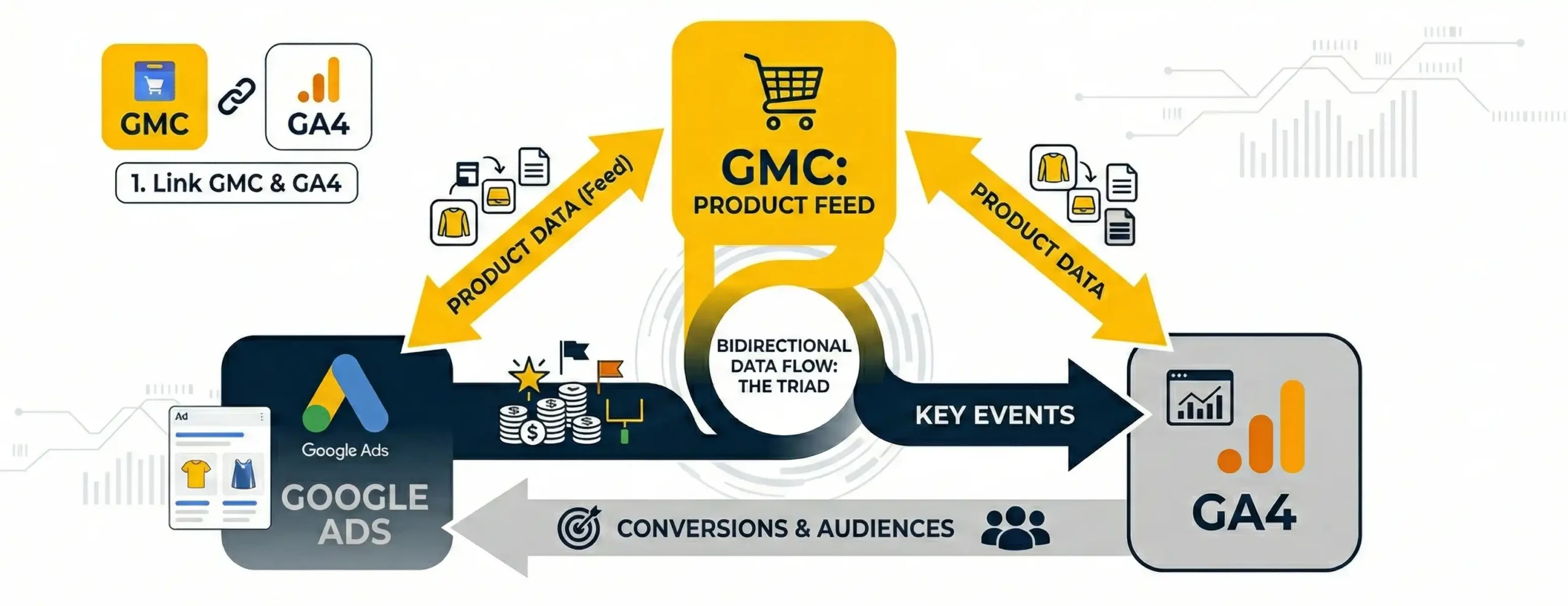
Think of this as a powerful triad. Once you have successfully linked GMC to GA4, you’re halfway through the process. By linking GMC to Google Ads and GA4, you unlock a highly efficient bidirectional data flow.
GA4 gets key event data from the Merchant Center, Google Ads imports valuable conversion events and audiences from GA4, and the Merchant Center seamlessly feeds dynamic product data to both.
Scaling Up with YouTube Shoppable CTV Ads
Once your tracking architecture is fully connected, you are perfectly positioned to launch advanced media placements. By moving beyond traditional Shopping carousels, brands can successfully capture audiences right in their living rooms.
Accurately connecting your product feed enables you to run high-converting, immersive video campaigns. By linking your GMC feed to your Google and YouTube ads, you can turn passive viewers into active buyers. This is especially potent on YouTube TV and various YouTube ad placements, where audiences are highly engaged and receptive.
Through shoppable CTV (Connected TV) formats, viewers can watch your video ad on their television screen, while complementary product carousels appear alongside it or via interactive prompts. Whether a user is casting to their television or browsing on their phone, Shoppable TV ads allow them to browse and buy with ease.
Because you have successfully connected GMC to GA4, every interaction with these shoppable TV elements is accurately tracked, measured, and attributed. This gives you concrete data to prove the tangible, revenue-driving capability of your upper-funnel video investments.
Ready to integrate product feeds into your video creative? Discover how to capture living room audiences in our complete guide to YouTube Shoppable CTV ads.
Optimize Ads Performance with Google Account Linking
Connecting your Google Merchant Center account to Google Analytics 4 is a strategic advantage that takes your entire marketing program to another level. By combining your product data with your behavioral tracking, you feed Google’s machine learning exactly what it needs to find your ideal customers efficiently, whether they are searching on a desktop or engaging with a shoppable CTV ad in their living room.
Take a moment to audit your tracking setup today. Connecting these data streams is one of the best moves you can make to boost your media efficiency and scale your brand’s growth this quarter.

Article by
Lee Baler, Strike Social’s VP of Sales & Strategy
Lee leads global strategy, helping clients and agencies maximize YouTube and paid social performance. Constantly tracking industry trends, he translates insights into strategies that help brands stay competitive and achieve sustained profitability.


