

Key Takeaways
- Higher ROAS with high-intent audiences: By linking your GA4 audience data to Google Ads, you utilize first-party data to create highly-qualified customer lists. This approach offers a significant advantage over relying solely on Google’s data, leading to a much higher ROI.
- A “cheat code” for targeted campaigns: Unlike the traditional Google Ads approach, which starts broad and requires refinement for niche and location, GA4 offers a shortcut. It lets you use your existing first-party data to target similar, high-intent audiences instantly.
- Quality over quantity: Rather than aiming for a massive, general audience (e.g., 1 million users), targeting a smaller group of highly-qualified audiences (e.g., 18,000 website visitors) drastically increases your conversion probability and yields better results.
Jump to Section

How to Use GA4 Audiences in Google Ads Campaigns
Knowing how to use Google Analytics (GA4) audiences in Google Ads campaigns is the first step to maximizing Google’s ecosystem, recovering lost conversions, and identifying your most valuable users. GA4 audiences are user segments defined by behavior, demographics, or predictive metrics, and they can be directly exported to Google Ads for remarketing. Brands that use Google Analytics often see significant performance improvements, including a 7x increase in ROAS and a 100% increase in CTR.
The shift from the restricted, single-platform data of old ad tags to the cross-channel, behavioral targeting offered by GA4 represents the new industry standard. Learning how to use this data allows you to optimize your ad budget and target highly specific audiences in your campaigns. Let’s break down the exact process for connecting your accounts and constructing high-intent user lists for your Google ad campaigns.
How to Connect GA4 Audiences to Google Ads
To access advanced audience segmentation and cross-channel intelligence, you must first link your Google Analytics 4 (GA4) property with your Google Ads account. Follow these steps to establish the necessary data pipeline:
1. In your GA4 property, open the left-hand menu and click the Admin gear icon in the bottom-left corner.

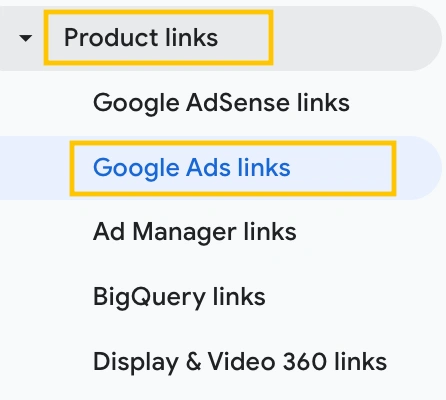
2. Scroll down to the “Product Links” section and select “Google Ads Links.”
3. Click the “Link” button, then choose “Select Google Ads accounts.” Check the box next to your active Customer ID (CID) and click “Confirm.”
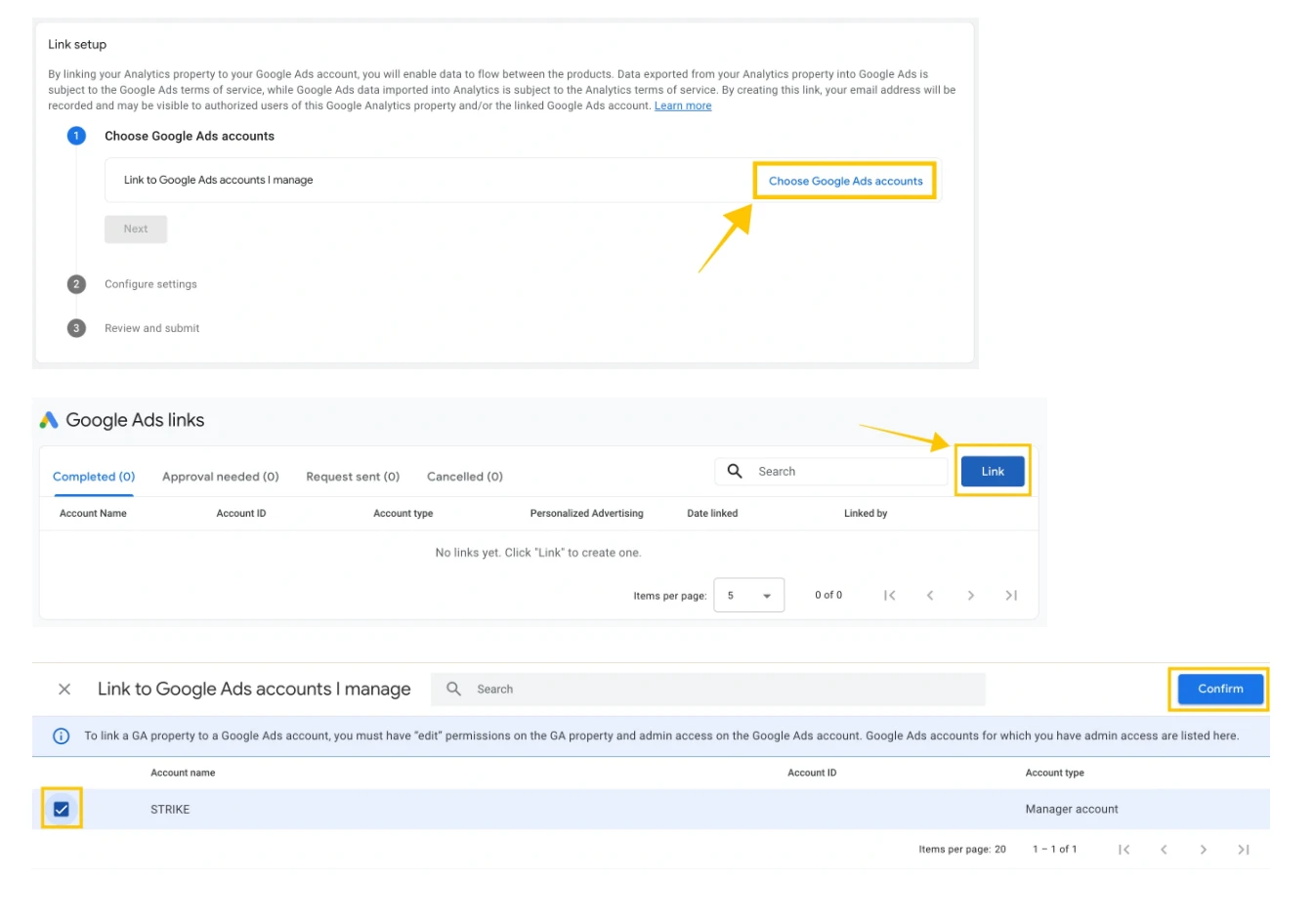
* Note: You must have ‘edit’ permission on the target Google Ads account to see it and complete the link.
4. Click “Next.” On the configuration screen, ensure the “Enable Personalized Advertising” toggle is ON. (If this is disabled, your remarketing lists will not populate.)
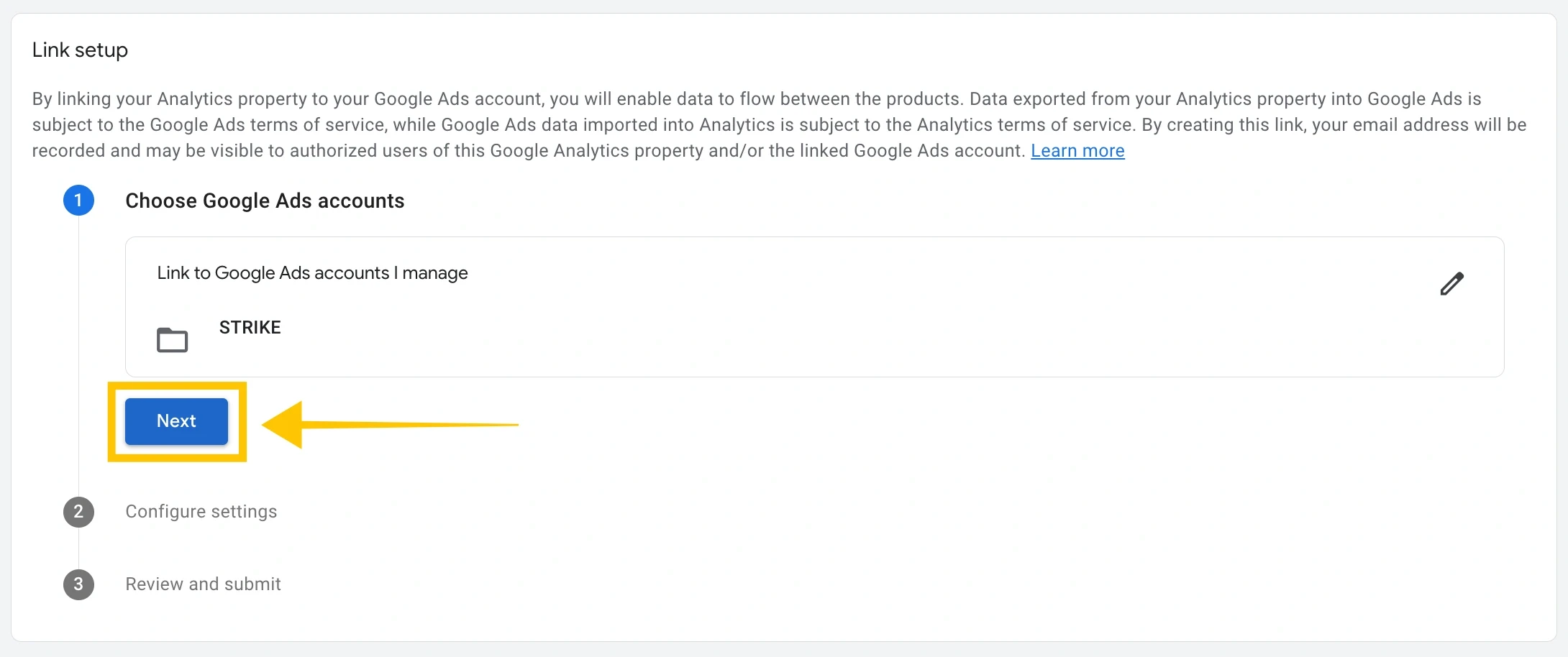
5. Verify that your auto-tagging settings are enabled, then click “Next.”
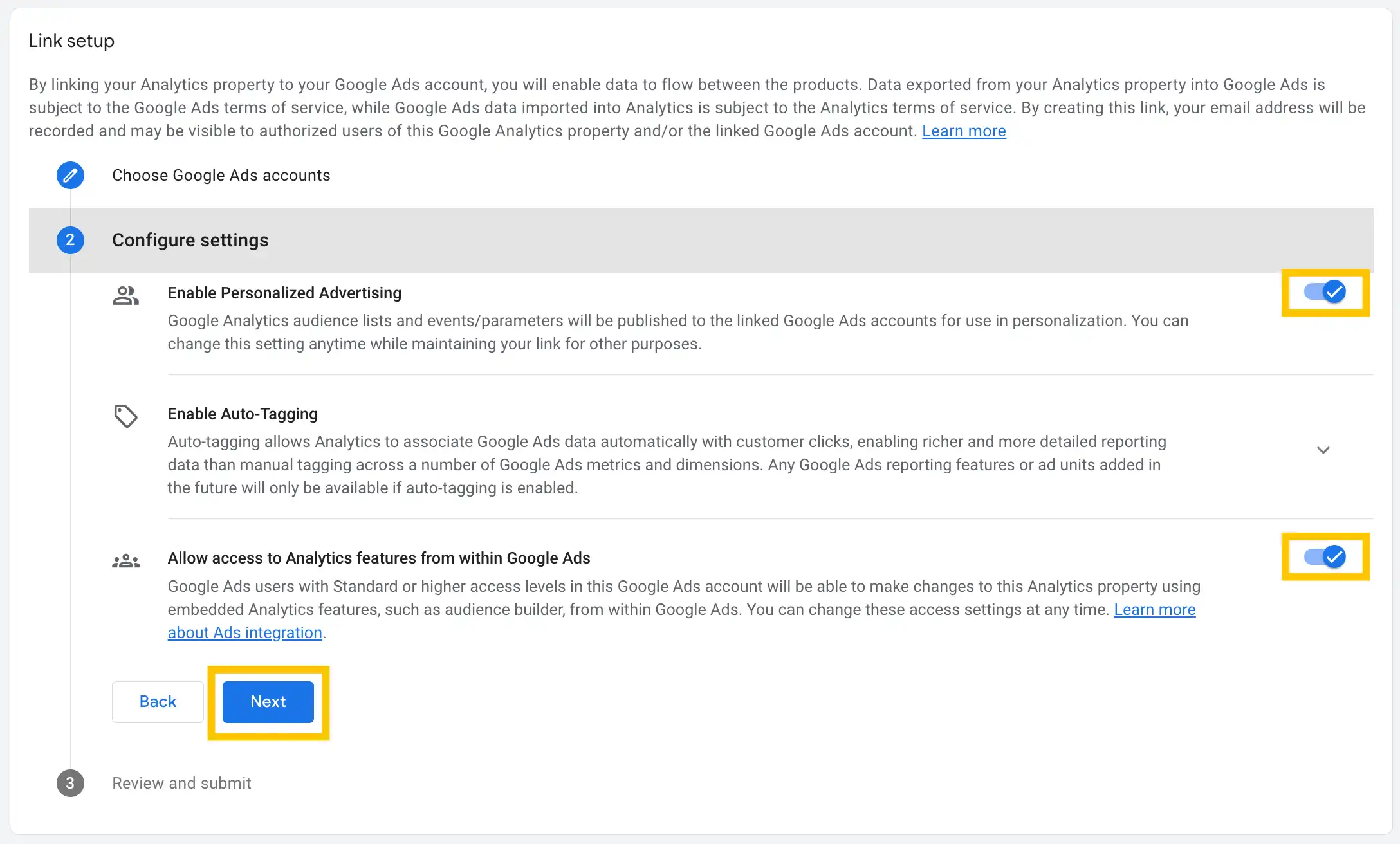
6. Click “Confirm,” then “Submit” to finalize the integration between Google Analytics 4 and Google Ads.
Once done, your GA4 audiences in Google Ads will automatically begin syncing, allowing you to gather cross-channel intelligence and utilize direct website data for your campaigns.
How Do GA4 Audiences Differ from Google Ads Audiences?
GA4 audiences differ from Google Ads audiences because Google Analytics 4 captures the complete user journey across all traffic sources, including organic search, direct visits, social media, and email. This data allows you to create highly granular segments based on specific on-site behaviors, such as scroll depth, video views, or custom event completions. In contrast, your Google Ads audiences are limited to the data collected specifically through its advertising campaigns.
Here is a clear breakdown of the differences:
| Feature | GA4 Audiences | Google Ads Audiences |
|---|---|---|
| Data Origin | 100% first-party data (owned by your brand) | Network data & broad platform signals |
| Data Source | Cross-channel (organic, direct, social, paid) | Single-channel (Ad clicks and direct pixel fires) |
| Behavioral Depth | Top-to-bottom level (Scroll depth, time on page, custom event triggers) | Surface-level (Page views, basic conversions) |
| Predictive Capacity | Highly specific (Machine learning based on your first-party site data) | Semi (Based on general Google user behavior and network signals) |
| Cross-Device Tracking | Advanced (Relies on GA4 Signals & Consent Mode) | Limited (Relies heavily on third-party cookies) |
Google Analytics audiences are highly actionable because they continuously attract users from the moment they are created, allowing real-time targeting in your live campaigns.
This offers a significant advantage over using Google Ads audiences alone, as your campaigns are constantly optimized for the actual people visiting your site rather than relying solely on a static audience built from generalized data across all advertisers.
Creating Audiences in Google Analytics 4 for Remarketing
GA4 offers superior flexibility because it operates entirely on an event-based model, a fundamental shift from the dated and limited Universal Analytics interface.
To use this effectively, here are the steps to create remarketing audiences in GA4 that enhance your Google Ads campaigns.
Start with the GA4 Audience Builder
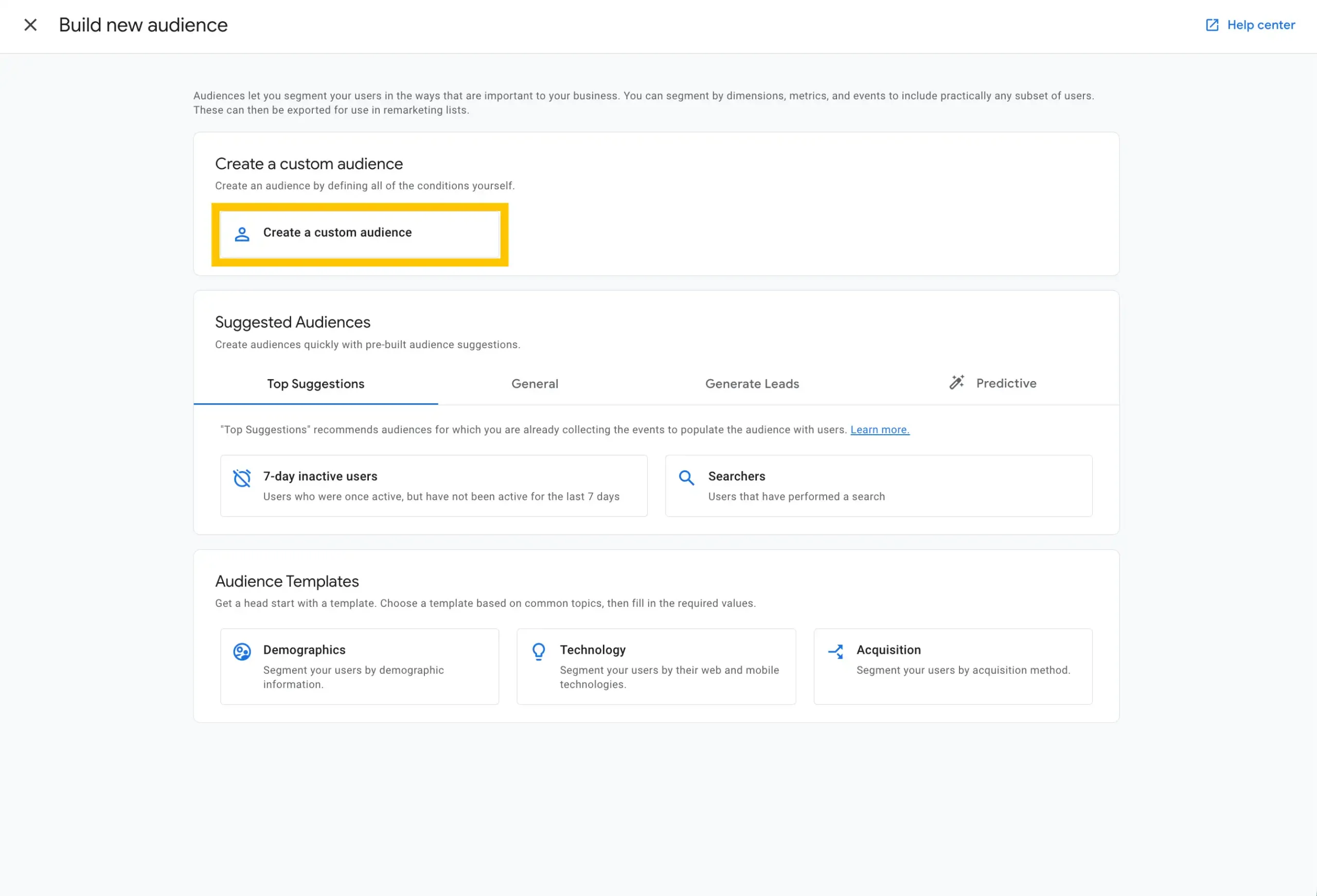
To start, go to the Admin section of your property. Under the “Data display” column, click on “Audiences.” From here, click the blue “New audience” button. You will be presented with the option to use pre-built templates or create a custom audience from scratch.
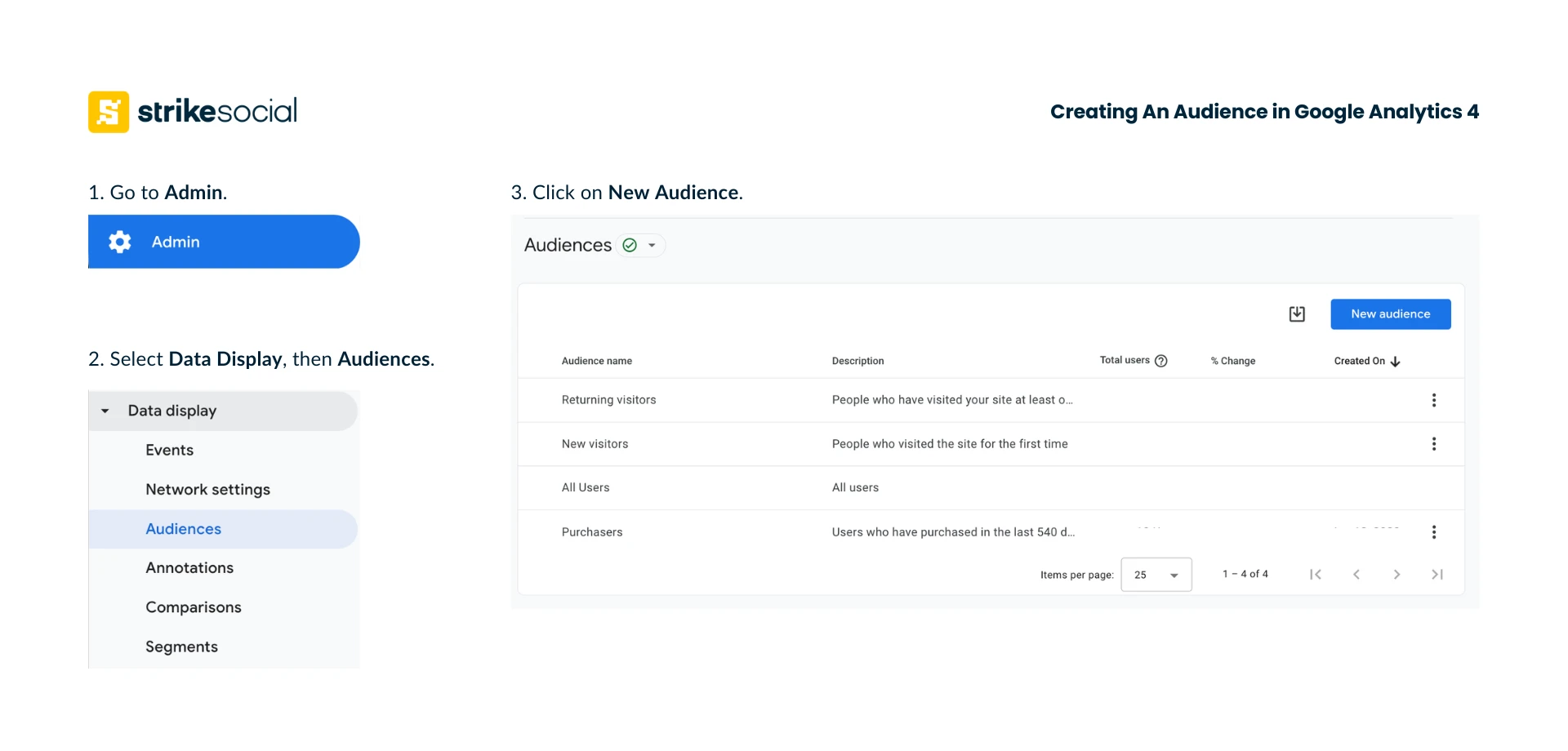
Building Your First Custom Audience
To begin creating a Google Analytics 4 audience for remarketing, for instance, a lead generation campaign, the ideal starting point is users who have started filling out a form (form starters).
1. Begin by selecting Create a custom audience.
2. Provide a clear name and a brief description for the audience.
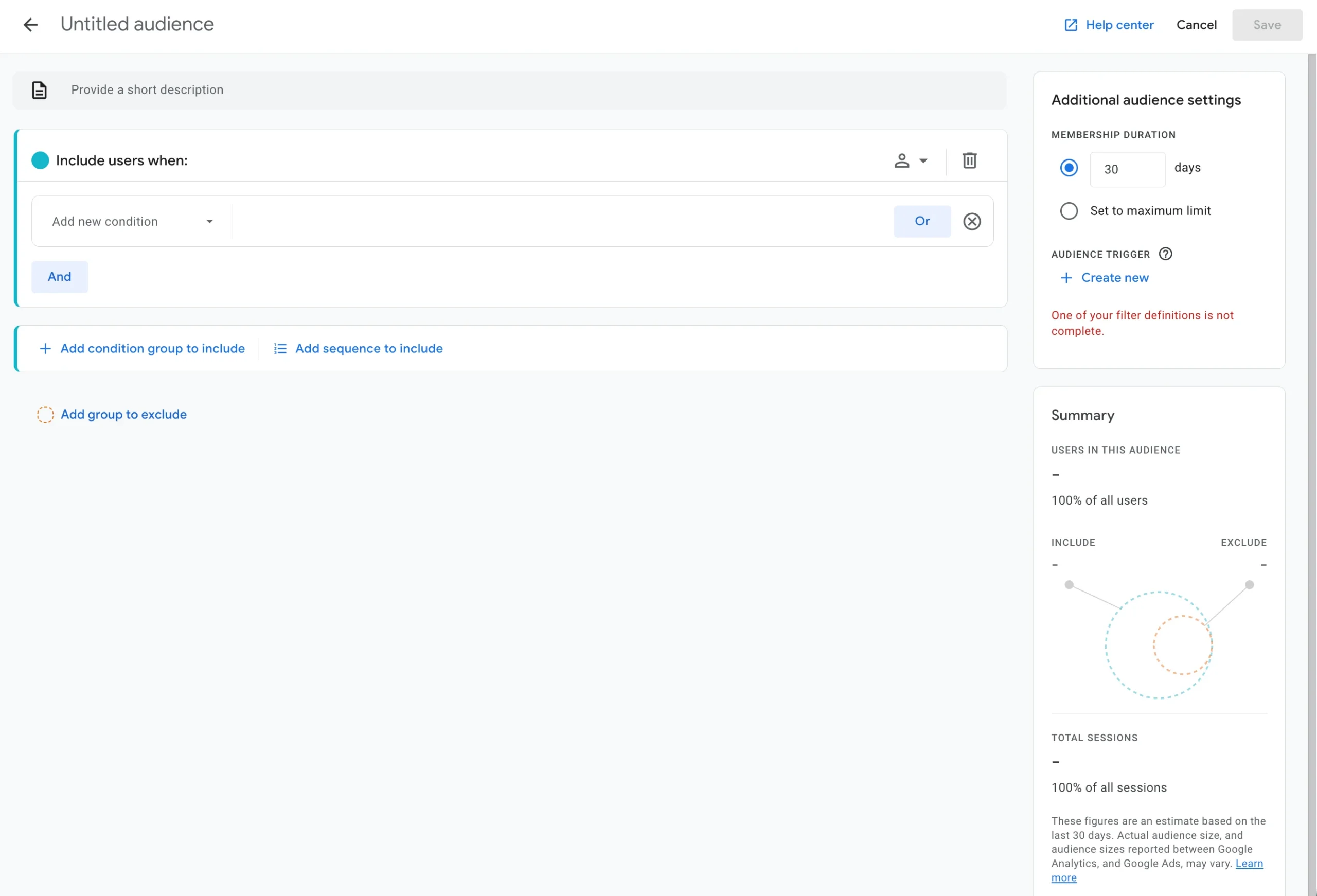
3. Under the “Include Users when:” section, set the condition to include users who trigger the form_start event.
4. Click Add group to exclude.
5. Configure this exclusion group to permanently exclude users who have triggered the form_submit event.
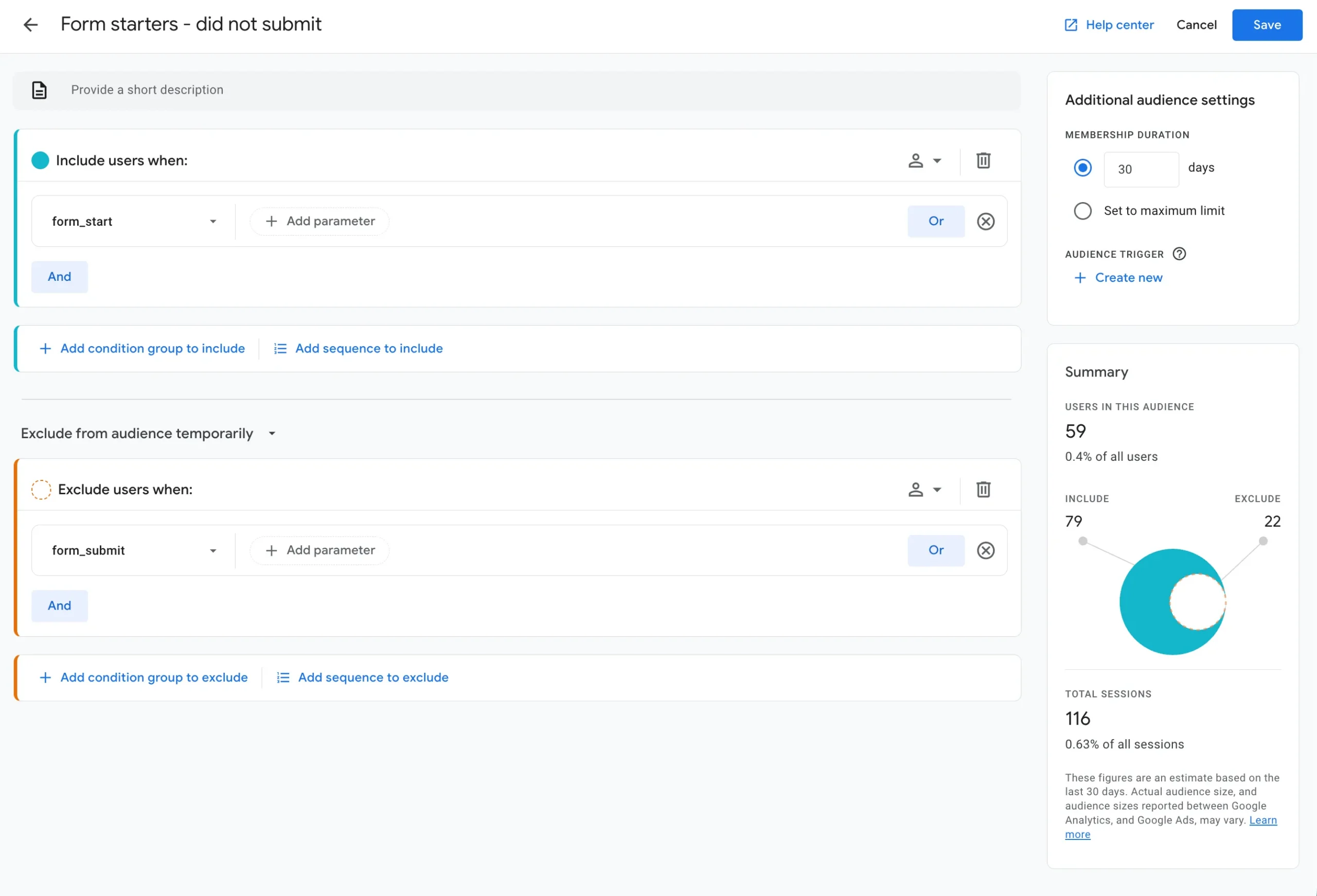
6. Define the audience’s membership duration (e.g., 30 days) and then click Save.
Since your accounts are already linked, this new audience list will be automatically exported to the Shared Library within your Google Ads account.
Download the GA4 Custom Audience Guide
Discover how to turn first-party website data into high-value audiences using Google Analytics 4. Strengthen your targeting and improve results across your Google Ads campaigns.
3 Ways to Use GA4 Audience Data in Your Campaigns
Audience creation is only the first step; strategic deployment of this behavioral data across your campaign mix is what drives revenue.
Here are the different ways you can use your GA4 audiences in your Google Ads campaigns.
Search Marketing Campaign Optimization
Incorporating GA4 data into a standard search marketing campaign enables dynamic bid adjustments informed by actual user behavior and intent. For a Google Search campaign, it is more valuable to weight CPC bids more heavily towards users who have already spent time on your site, as they represent a more engaged audience, than to prioritize first-time visitors who are less familiar with your specific offers.
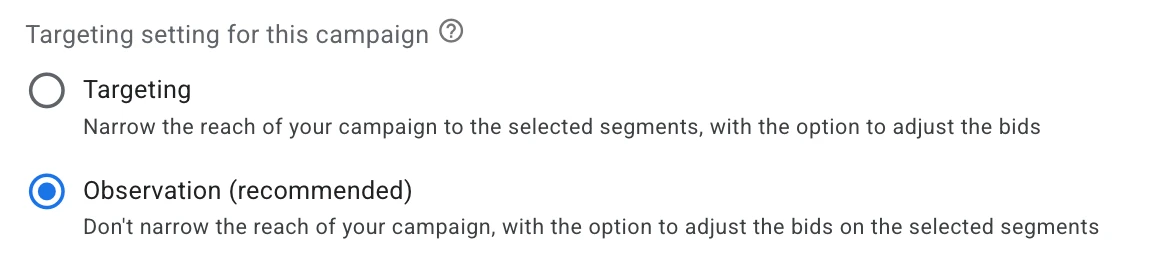
This strategy can be executed by layering your GA4 audiences as an “Observation” in your ad groups.
- Increase Bids: Apply a higher bid modifier to highly engaged users.
- Decrease or Exclude: Exclude audiences, such as recent purchasers, to avoid retargeting users who are already in your database.
Video Ads Integration
Cross-channel data completely transforms video advertising. When you feed rich GA4 behavioral data to Google’s algorithms, you give your YouTube ads more targeting power.
Instead of relying on broad demographic targeting on YouTube, you can serve highly specific video creatives to users who abandoned a specific product category on your website. Furthermore, as Google expands its Connected TV inventory, you can use these same high-intent GA4 audiences on YouTube CTV, putting your brand on the biggest screen in the house for users who have already shown deep interest in your products.
Further Reading
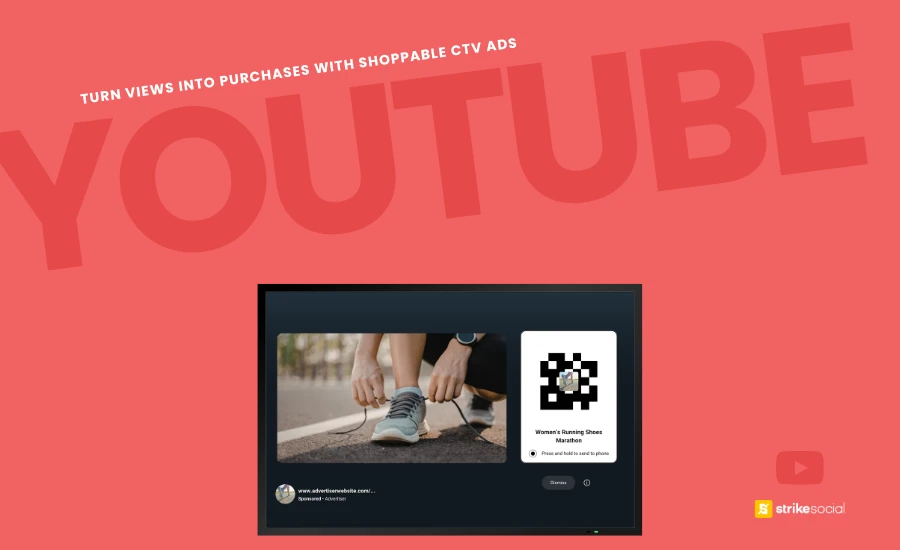
Activating Shoppable TV Through Demand Gen and PMax
Shoppable TV ads are increasingly driven by AI-led campaigns like Demand Gen and Performance Max. These formats analyze performance signals across Google’s inventory, surfacing YouTube TV and CTV placements as key drivers of conversion.
GA4 Predictive Audiences
When scaling your Google and YouTube ads, GA4 predictive audiences is the way to go. Instead of targeting users based on what they did, predictive audiences target users based on what Google’s machine learning models calculate they are likely to do.
Categories include:
- Likely 7-day purchasers
- Likely first-time 7-day purchasers
- Likely 7-day churning users
* Note: To unlock these audiences, your property must meet specific data thresholds. You need at least 1,000 positive events (e.g., purchases) and 1,000 negative events (non-purchasers) within a 28-day period.
By applying a predictive audience for a Smart Bidding campaign, you instruct Google to aggressively target the top 10% of traffic most likely to convert. Once active, this capability results in a more efficient Cost Per Acquisition (CPA) throughout your campaign.
Troubleshooting: Why Aren’t GA4 Audiences Showing in Google Ads?
If your audience data from Google Analytics 4 isn’t populating, check these four critical areas:
- Consent Mode V2 Issues: Google requires strict adherence to Consent Mode. If your website’s cookie banner is not correctly passing consent signals (ad_user_data and ad_personalization) back to GA4, Google will block that audience data from being used for remarketing in Google Ads.
- Google Signals is Not Active: To build cross-device audiences and enable remarketing, you must activate Google Signals (or user-provided data collection) in the GA4 Admin panel under “Data collection”. Without this, GA4 cannot identify users across different browsers and devices.
- Data Privacy Thresholds: Google Analytics applies data thresholds to prevent anyone from inferring the identity of individual users. If your audience is too small (typically fewer than 100 active users), Google will withhold the data, and the audience size will appear as “0” in your Ads account.
- 24-48 Hour Propagation Delay: It typically takes 24 to 48 hours for systems to sync and for user cookies to be processed. Be patient before assuming the connection is broken.
Build Smarter Audiences with GA4 and Google Ads
Understanding and utilizing GA4 audiences is a fundamental requirement for anyone managing campaigns in Google Ads. By moving away from basic pixel data and allowing cross-channel integration to feed your audience data, you give Google’s smart bidding algorithms the exact fuel they need to find higher-quality conversions.
Connect your accounts, develop custom behavioral segments, and significantly improve your campaign efficiency. Reach out to Strike Social’s experts today, and let us bring your campaigns to new heights and drive real revenue.

Article by
Lee Baler, Strike Social’s VP of Sales & Strategy
Lee leads global strategy, helping clients and agencies maximize YouTube and paid social performance. Constantly tracking industry trends, he translates insights into strategies that help brands stay competitive and achieve sustained profitability.


